The information in this thread is what Nintendo provided to further enhance your web projects on the WiiU, however this information has since been pulled from the internet so i took the liberty of tracking it down in the wayback machine and converting to Markdown for anyone that is looking to web design with a WiiU in mind.
Internet Browser - Extended Functionality
With the Wii U Internet Browser, by using specialized JavaScript, it is possible to obtain button states of the GamePad or controlling how video and images (JPEG) are displayed.
Sample page to obtain values from the Wii U GamePad. - Wii U Internet Browser required
Nintendo provides this information as a courtesy and does not offer support on this extension function.
Developer Mode
This feature available is for Wii U System version 4.0.0U and above
Change user agent:
Changes can be made from the Wii U console's Internet Browser > Start Page > Settings.
Enable developer tools:
The developer tools can be enabled from the Wii U console's Internet Browser> Start Page > Settings.
Once enabled, you can use a browser on a PC on the same local network to inspect the code of any web page.
The developer tools work with Chrome [ver.30.0.1599.101m] and Safari [ver.6.0.3] and above.
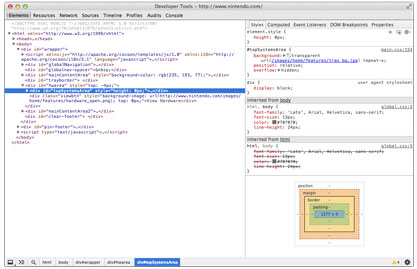
Changing the user agent and enabling developer tools will be disabled once the Wii U console's Internet Browser is closed.
Enhanced Video Playback Function
Embedded play (inline) on a webpage:
The Wii U console's Internet Browser generally plays video full screen. However, if text, pictures or other elements need to be included with the video while it plays, embedding an inline video player can be done on the page by using the methods below.
-
Insert "webkit-playsinline" into the video tag.
Example: < video webkit-playsinline controls >
-
While holding down on a video tag the option "Play video on web page" from the menu will be displayed.
- This button is only enabled when a video tag is found.
Please note that, since September 30, 2013, embedded inline video play can only be done on updated systems.
Suppression of autoplay:
Since the Wii U console's Internet Browser is unable to play 2 or more videos simultaneously, autoplay is suppressed. Suppression conditions are as follows.
- Video tag autoplay elements
- Play () order by operation of non-user using JavaScript timer etc.
Using +Control Pad buttons to focus
Focus movement rule:
Focus moves to the first element found (anchor element link, tab index, etc.) when moving in the direction of the +Control Pad button pressed. If no element is found in that direction, focus is not moved, but scrolls for a determined quantity.
Control method:
You can call up a "preventDefault" method for the target element node's "keydown" event, or hide focus by returning "false".
window.wiiu. gamepad Object
Method
| Method Name |
Parameters |
Return Value |
Description |
| update() |
None |
GamePad State Object |
Get information on the current state
of the GamePad. An object holding
that information will be returned. |
Properties
| Name |
Description |
| isEnabled |
Return 1 if the GamePad is connected. |
| isDataValid |
Return 1 if the data stored in the object is valid. |
| tpTouch |
Return 1 if the touchscreen is currently being touched. |
| tpValidity |
Depending on the validity of the touch position data (contentX, contentY), the following values are assigned.
Both X and Y coordinates are valid: 0
X coordinate is invalid: 1
Y coordinate is invalid: 2
Both X and Y coordinates are invalid: 3 |
contentX
contentY |
With the upper left of the content being the origin (0, 0), this value represents the touch position within the content area.
The value has a range of 0 ≤ contentX < Content Width, 0 ≤ contentY < Content Height. If for example, the touch event occured on the address bar, or anywhere else outside the area of the content, the value will indicate it was out of range. |
lStickX
lStickY |
This represents the tilt direction of the left stick. The value range is -1.0 ≤ lStickX ≤ +1.0, -1.0 ≤ lStickY ≤ +1.0. The Up and Right direction represents a positive value. |
rStickX
rStickY |
This represents the tilt direction of the right stick.
The value range is -1.0 ≤ rStickX ≤ +1.0, -1.0 ≤ rStickY ≤ +1.0. The Up and Right direction represents a positive value. |
| hold |
While a button is held down, the flag for that button will be set. Multiple buttons that are held down can be detected by looking for that particular flag. See Button Flags Table. |
accX
accY
accZ |
Represents the accelerometer values.
X value points in the left direction of the GamePad screen
Y value is the front side of the GamePad screen
Z value is coming out from the top face of the GamePad
These are all in the positive direction and the values are fractional value with 1G being +1.0. |
gyroX
gyroY
gyroZ |
Represents gyrosensor (angular speed) values.
Referencing the same axes of the accelerometer, positive values indicate a clockwise rotation with 360 dps (degrees per second) being 1.0. |
angleX
angleY
angleZ |
Represents the amount of rotation for each axis, which is calculated from the gyrosensor value. |
dirXx
dirXy
dirXz
dirYx
dirYy
dirYz
dirZx
dirZy
dirZz |
A 3x3 matrix representing the 3 dimensional orientation of the GamePad. |
Button Flags Table
| Input |
Flag |
| +Control Pad - UP |
0x00000200 |
| +Control Pad - DOWN |
0x00000100 |
| +Control Pad - LEFT |
0x00000800 |
| +Control Pad - RIGHT |
0x00000400 |
| A button |
0x00008000 |
| B button |
0x00004000 |
| X button |
0x00002000 |
| Y button |
0x00001000 |
| L button |
0x00000020 |
| R button |
0x00000010 |
| ZL button |
0x00000080 |
| ZR button |
0x00000040 |
| - button |
0x00000004 |
| + button |
0x00000008 |
| LStick - UP |
0x10000000 |
| LStick - DOWN |
0x08000000 |
| LStick - LEFT |
0x40000000 |
| LStick - RIGHT |
0x20000000 |
| RStick - UP |
0x01000000 |
| RStick - DOWN |
0x00800000 |
| RStick - LEFT |
0x04000000 |
| RStick - RIGHT |
0x02000000 |
| LStick Button |
0x00040000 |
| RStick Button |
0x00020000 |
window.wiiu.videoplayer Object
Method
| Method name |
Parameters |
Return Value |
Description |
| end() |
None |
Success or failure (Boolean) |
Terminate the video player |
Property
| Name |
Description |
| viewMode |
The following integers are used to describe the state of GamePad display while a video is playing back.
Video playback screen: 0
Browser screen: 1
Also, by changing this value, it is possible change the GamePad state while video is being played back. |
Related Events
| Name |
Description |
| wiiu_videoplayer_end |
Call to terminate video player. |
window.wiiu.imageview Object
Methods
| Method Name |
Parameters |
Return Value |
Description |
| end() |
None |
Success or failure (Boolean) |
Terminate the image viewer |
| getErrorCode() |
None |
Error Code (Number) |
Returns the error code of the most recent error that occurred. If no error has occurred, it will return -1. |
Property
| Name |
Description |
| viewMode |
The following integers are used to describe the state of GamePad display while an image is being viewed.
Image viewer screen: 0
Browser screen: 1
Also, by changing this value, it is possible change the GamePad state while an image is being viewed. |
Error Code Table
| Number |
Description |
| 202 |
Unsupported format |
| 202 |
Either the width or height of the image is too large |
| 204 |
The file size of the image is too large |
| 205 |
The image is a progressive format JPEG and the pixel count is too large |
Related Events
| Name |
Description |
| wiiu_imageview_start |
Call to start image viewer. |
| wiiu_imageview_end |
Call to terminate image viewer. |
| wiiu_imageview_change_viewmode |
Call to change image viewer display mode. |
| wiiu_imageview_change_content |
Call to change image viewer content. |
| wiiu_imageview_error |
Call when there is an error with the image viewer. |
Key codes obtained from KeyEvents on Wii U GamePad
| Key |
Code |
| +Control Pad - UP |
38 |
| +Control Pad - DOWN |
40 |
| +Control Pad - LEFT |
37 |
| +Control Pad - RIGHT |
39 |
| A Button |
13 |